
Start with the photos you want to place
A folder of travel pictures can contain several different location questions. One image might show a mountain, another a street sign, and another a building you no longer recognize. Asking “where was this photo taken” across that folder starts with a single selection in the WhereIsPhoto workspace. Open the batch option on the homepage and use the file picker on your computer or phone.
Keep the original files when possible. A recognizable landmark, readable sign, distinctive skyline, or wider view gives the search more useful visual evidence than an isolated detail. You can mix locations in one batch; the images do not need to belong to the same trip. Each photo receives its own search and result. The batch keeps that work together so you can review the set without repeatedly opening the upload form.
Input: up to 10 JPG, PNG, or WEBP images. Maximum 8 MiB per file.
Review the selection before you spend searches
Choose up to 10 files and check the thumbnail list before submitting. Remove an accidental duplicate or a picture you do not want searched. If you are working directly on a phone, select several images from the device file picker. For each “where was this photo taken” question, use a photo whose surroundings are visible rather than a screenshot dominated by captions or an application interface.
The selection determines the search count: one photo uses one search. Three selected photos use three searches, and a full batch of ten uses ten. Check your available balance and the number of selected files before starting. Images above the size limit or outside the supported formats need to be resized or converted first. Keep a copy of your originals; reducing a file should preserve the signs, buildings, terrain, and other details you want the search to examine.
Review first. A batch groups individual searches; it is not one search for the whole folder.
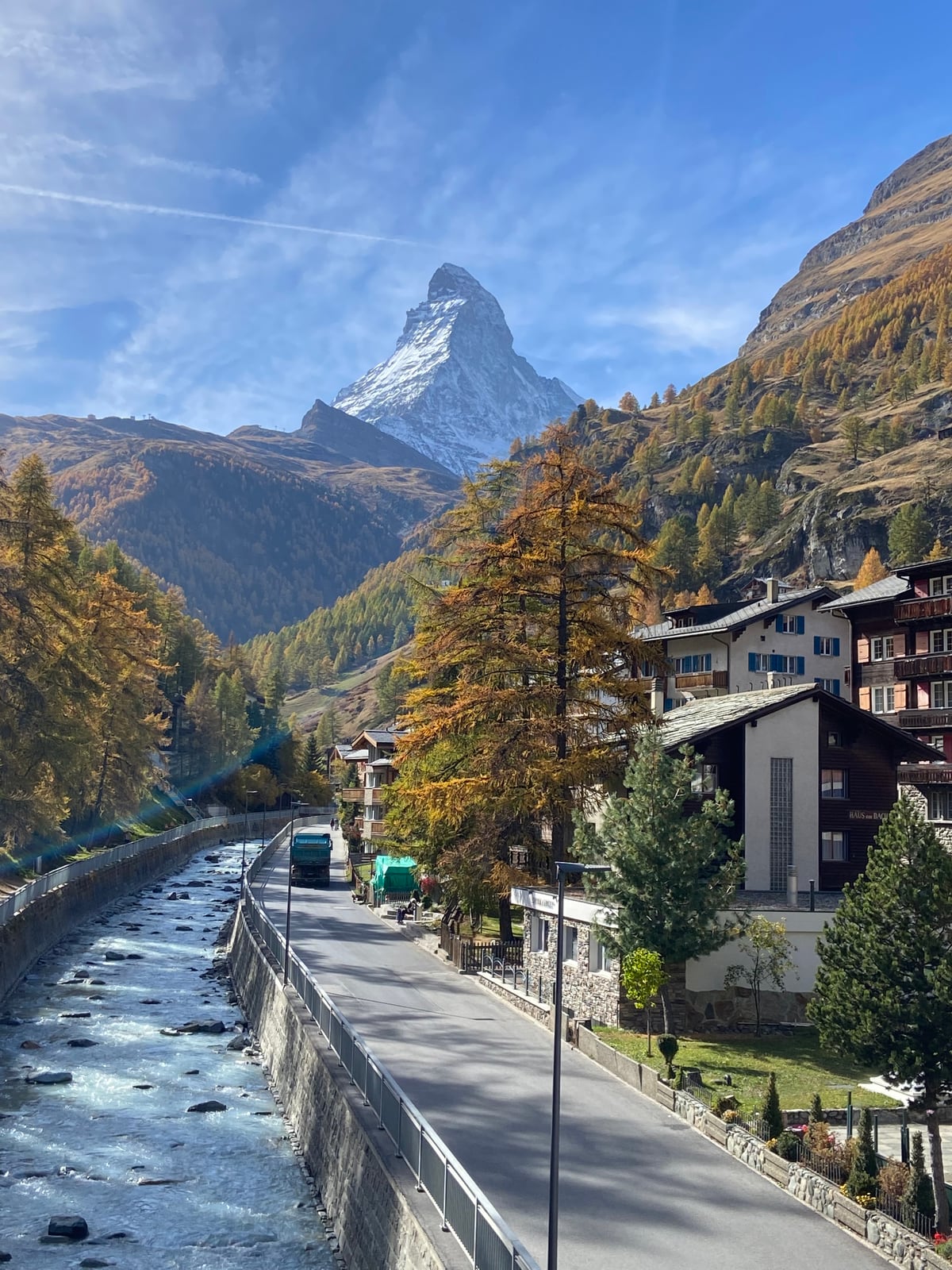 mountain.jpg
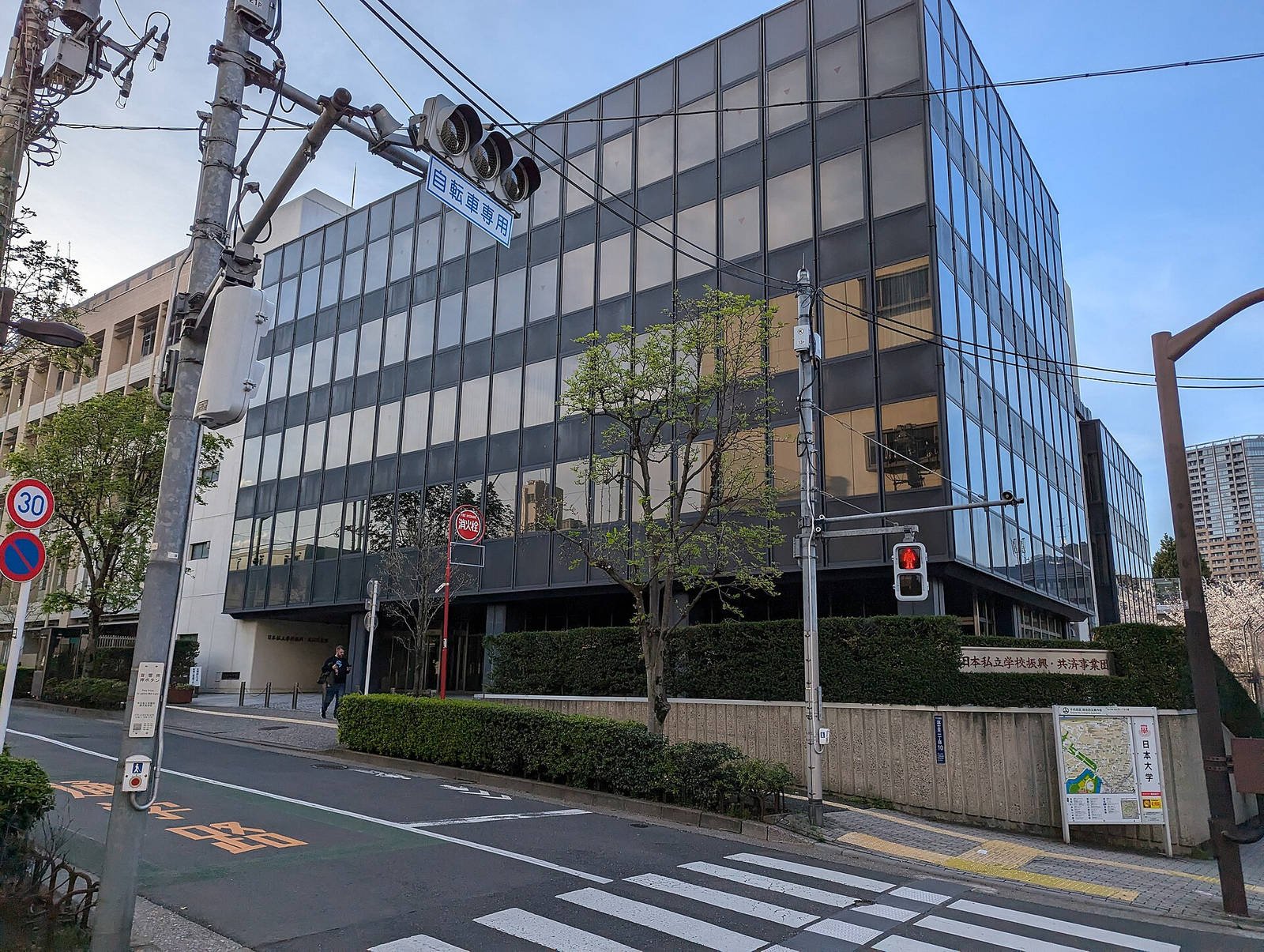 street.jpg
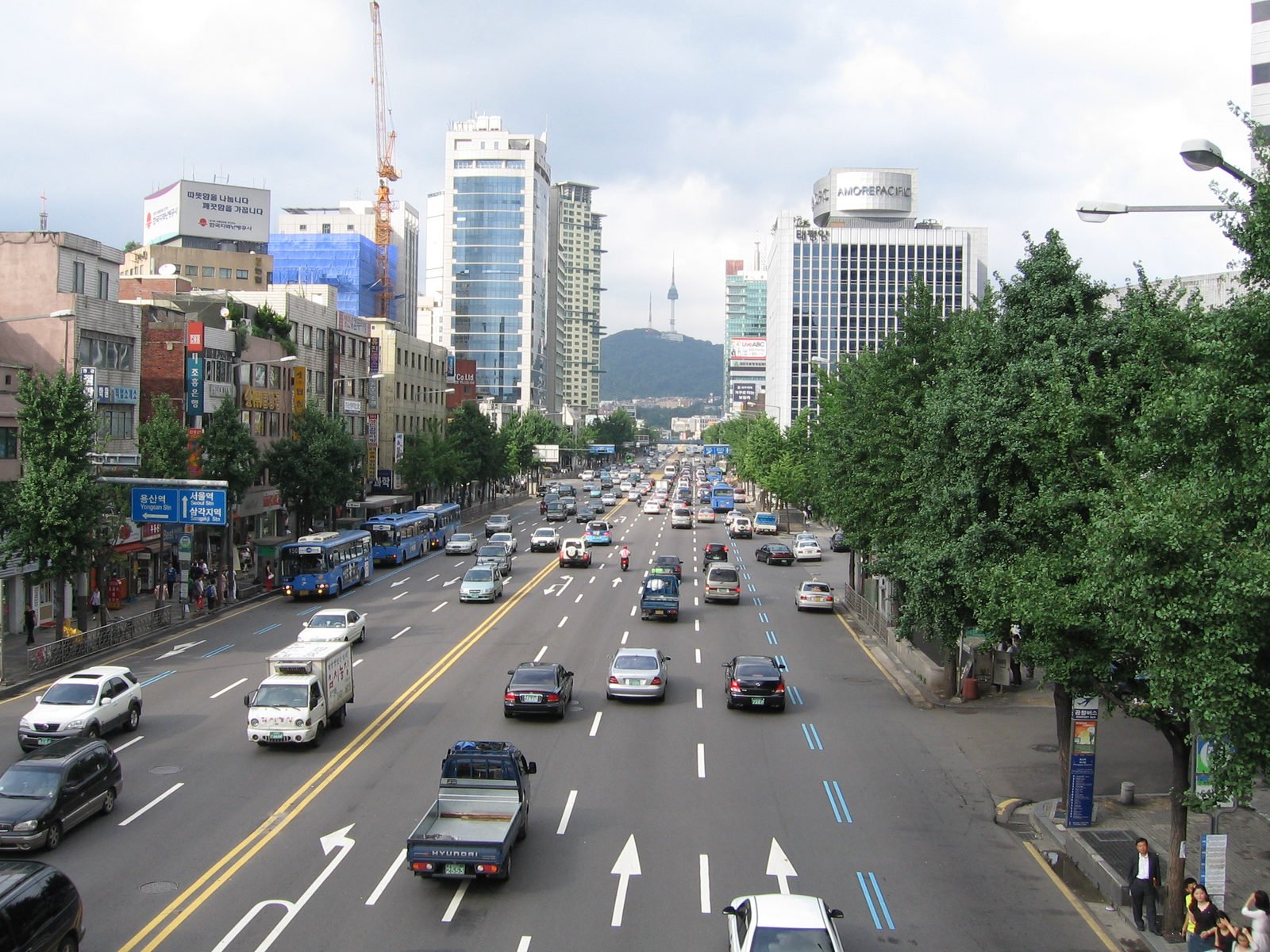 city.jpg
Let the batch continue in the background
Submit the selection to create a saved batch. Its queue separates waiting, processing, completed, and failed items, so you can see which photos have a result and which still need attention. You do not need to keep the browser tab open after the batch has been accepted. Processing continues in the background, and the saved batch is available again through History.
Treat every completed result as a separate answer to “where was this photo taken.” A recognizable landmark in one image does not establish the location of the next image. Open each result to inspect the proposed place and the visual reasoning, then compare it with the photo. If an item fails to process, its search is refunded. Retry that failed photo on its own when you are ready; successful photos stay completed and do not need to be searched again.
You can leave after submission. Return through History to check the saved batch.
mountain.jpgOpen individual resultCompletedstreet.jpgExamining visual cluesProcessingcity.jpgWaiting for its turnQueuedYou can close this page. Find this batch in History.
Open the finished batch when it suits you
The completion email gives you a route back to the batch results. Open its online results link and review the individual photos in your account. History is another way to find the same saved work, so you do not need to keep an email open to continue. Check the item statuses as well as the batch summary; a finished queue can include a photo that needs a retry.
When you return to “where was this photo taken” later, keep the source image beside the result while checking it. Compare recognizable shapes, signs, road layouts, or surrounding terrain before relying on a suggested location. Online result access is available without Pro. PDF reports and CSV exports are Pro features, giving you a way to take the findings into a document or spreadsheet after reviewing them. The email illustration here shows the workflow, not a delivered message or a search accuracy example.
Online results: available from the email and History. PDF and CSV exports: Pro.
Open your online results and check each photo.
View batch resultsWhere was this photo taken? Compare the results.
A bulk photo location finder is useful when the repetitive part is selecting, submitting, and finding your results again. It does not make every image equally identifiable. A famous tower can carry stronger location clues than a plain wall or a close-up portrait. The result should help you investigate a place, with a level of confidence that reflects the available evidence.
For a useful “where was this photo taken” review, begin with the clearest images and compare the proposed places against their visible details. A location estimate is not proof that a person was present there, or that a photograph was captured on a particular date. Keep those questions separate from the visual location search. If you already have coordinates embedded in the original file, the metadata tool offers a different route: it reads existing information rather than inferring a place from the scene.
Use the batch as a working list for a travel album, a collection of reference images, or an archive you are organizing. Save your own notes about what you checked. The example photographs on this page are licensed source images used to explain selection and queue states; their known places do not represent fresh AI findings. No accuracy rate or processing time is implied by the illustrations.
Use the same search balance as a single photo
Batch processing uses one search per photo, with the same failed-search refund behavior as an individual submission. You can buy 20 searches for $4.99, valid for 365 days. Pro costs $14.99 per month and includes 100 searches per billing period, plus PDF and CSV exports. Check the pricing page for the plan details before choosing a package.
Choose based on the number of photos you expect to search and whether you need exported files. You can review ordinary online results without subscribing to Pro. If one item fails, retry only that item instead of resubmitting the entire set. That keeps successful work available and makes it easier to understand which photos still need attention.
View plans and search allowancesBefore you start a batch
Can a batch answer “where was this photo taken” for a folder?
Yes. Select up to 10 supported images per batch. For a larger folder, work in smaller sets and review each saved batch through History. Every photo uses one search.
Do I have to keep the page open?
No. Once your batch has been submitted and accepted, it continues in the background. Return through History or the completion email to open your results.
What happens if one photo fails?
The failed search is refunded. Retry that individual item; photos that already completed remain available and do not run again as part of that retry.
Can I select multiple photos on my phone?
Yes. Open the workspace on your phone and choose several files from the device picker. The same 10-photo batch limit and 8 MiB per-file limit apply.
Are PDF and CSV included for everyone?
Online results are available through History and the completion email. Downloading PDF reports or CSV exports requires Pro.