
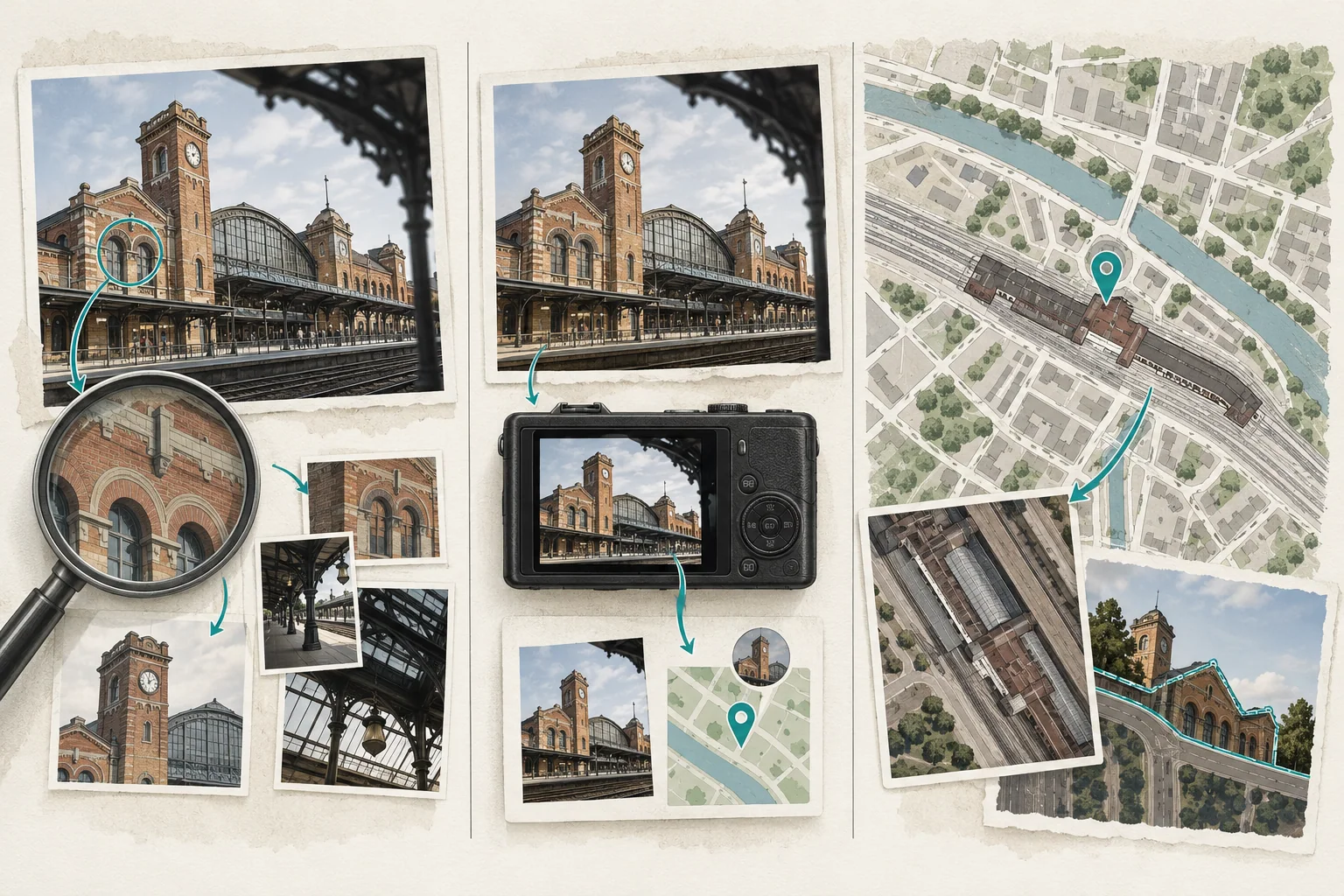
Illustration: choose image search, saved location information, or a map check according to the evidence you have.
Choose the right starting point
A Google photo location search can mean three different jobs. Choose the one that fits what you have, rather than expecting one search box to answer everything.
| What you have | Start here | What the result can tell you |
|---|---|---|
| A saved picture or image link | Google Lens | Related images and pages that may name the place |
| A photo in your Google Photos library | The photo's information panel | A saved, added, or estimated location, if available |
| A place name or coordinates already found | Google Maps | Whether the street, terrain, and surroundings fit |
These are different kinds of evidence. A stored location, a website caption, and a visual resemblance should not be treated as interchangeable.
How to find where a photo was taken with Google
Keep the original image as your reference. Search a copy if you want to crop it, and retain the full frame so you can check details later.
- Open Google on a computer and choose Search by image.
- Select Upload a file, choose your picture, and open it.
- Review the related images and relevant website results.
- If you have a useful detail, add a short description in Add to your search.
Google documents those steps in its image search instructions. The results can include similar images and pages containing the same or a related picture. They are leads to inspect, rather than an automatic record of the camera's position.
For a second attempt, focus on a distinctive feature: a station name, storefront sign, tower, bridge, or unusual ridgeline. A tight crop of an unremarkable window may remove the very surroundings that distinguish one building from another. Compare both versions before deciding which is more useful.
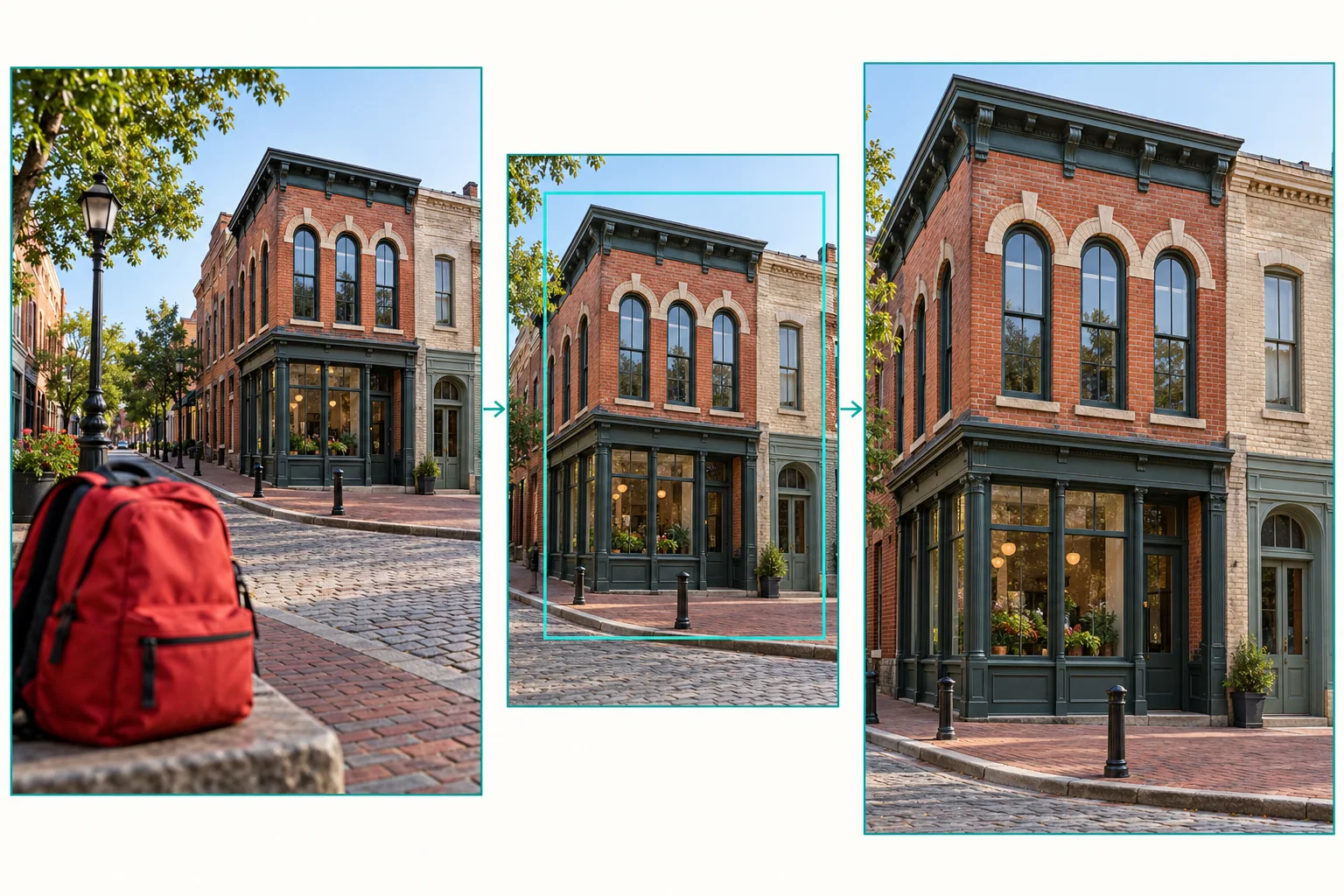
Illustration: compare the whole scene with a crop of a distinctive feature; keep nearby buildings available for verification.
Open the page behind a promising match
People who use Google Lens to find a location can get distracted by a result that merely looks familiar. Follow the link and look for a caption, address, place name, or photograph credit that actually describes the image.
Check at least two fixed details. Does the same tower sit behind the same roofline? Are the windows, street corner, and neighboring buildings arranged the same way? Similar architecture in another city is a reason to investigate further, not to accept the first label.
A travel article might show a landmark photographed from across a river. Its city name could be correct while its street address describes a hotel or the publisher's office. Separate the subject's location from where the photographer stood.
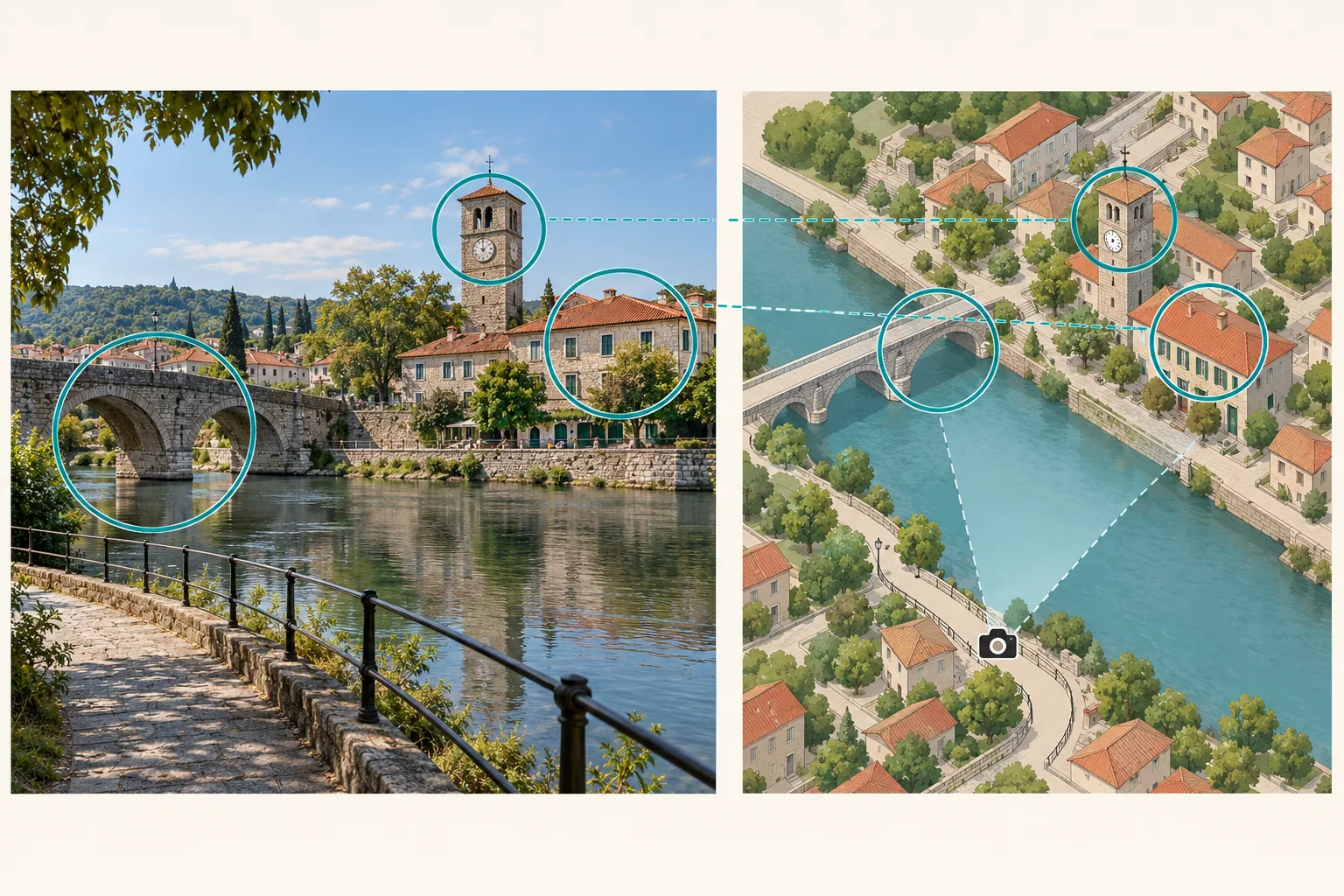
Illustration: compare several fixed features and the viewing direction; a map pin alone does not establish the camera position.
Check the scene on a map
Once you have a candidate name, search for it in Google Maps. Compare the river bend, road layout, slope, or neighboring buildings with the full image. Use available street-level imagery or public photos to investigate the viewing direction.
Record what agrees and what does not. A plausible skyline with the bridge on the wrong side needs an explanation. A shop that changed its name might be less important than a road intersection that cannot fit the photograph.
To find a photo's location with Google, a useful stopping point is a place supported by several consistent details. If only the general neighborhood fits, keep that broader description instead of turning a map pin into an exact shooting address.
Does Google Photos already show a location?
If the picture is in your own library, inspect its information before starting over. Google Photos explains that locations may come from the camera, manual additions, or estimates based on available context.
Those origins matter. An estimated label is a suggestion to check. A manually added place might be a past guess. Even saved coordinates deserve a quick comparison with the scene before you use them in a caption or travel plan.
A Google photo location search does not create missing camera GPS records. Finding a likely landmark and recovering information originally stored in a file are separate tasks.
What if the results show products or unrelated places?
Change the evidence you emphasize. If a bright jacket dominates the image, try a copy that gives more space to the background. If the photo contains readable text, search a distinctive phrase alongside a confirmed city or region. Keep uncertain guesses out of that first text search so they do not steer every result.
No useful match can also mean that the image has never appeared on a public page. Avoid cycling through small crop changes indefinitely. Save your best lead, note the unresolved detail, and choose another approach.
You can also try the AI photo location finder. WhereIsPhoto accepts JPG, PNG, and WEBP files up to 8 MB and offers up to three location suggestions with visual clues and maps. Searching requires sign-in and one credit. Treat those suggestions as candidates to compare, especially for generic scenes.
Common questions
Can I find where a photo was taken with Google without GPS?
Yes, you can search the visible scene without GPS tags. A named landmark, sign, or matching public image may provide a lead. The available detail determines whether you can narrow it to a building, a city, or only a broader area.
Does the first result confirm the location?
No. Verify the linked page and compare its explanation with the picture. Several websites repeating one caption are not necessarily independent confirmation. Keep a note of which source supplied each claim.
What if the picture shows an ordinary road or room?
Sometimes the picture offers too little distinctive information. A similar doorway or stretch of pavement is weak evidence. Leave the location unresolved if the matches cannot explain the surrounding scene.
Turn a lead into something you can check
When you find where a photo was taken with Google, save the supporting page, candidate place, and matching details together. That makes the result useful to someone who did not watch your search.
If you still need another lead, search your photo on WhereIsPhoto and compare the suggestions with the evidence you have already collected. The goal is a location you can explain, with uncertainty visible wherever the picture leaves questions open.