

Editorial illustration: begin with the photo's saved information, then investigate the scene if a location is missing. This is not an iPhone screenshot or a product test result.
Find a photo’s location on iPhone: start in Photos
Open the picture in Photos, swipe up or tap the Info button, and look for a saved location. If one is available, open it in Maps and compare it with the scene. If there is no location, you will need another copy of the file or a visual search.
Apple documents this first step in its guide to photo information on iPhone. The information available depends on the photo. An image being in your library does not mean it carries a location, and a picture received from someone else may provide less context than your camera original.
Start here even if you eventually plan to use an online tool. Looking at information you already have can answer the question without uploading the image, creating an account, or spending a credit.
Read the saved location before interpreting it
Apple's guide describes location information as one of the details you may see in Photos. When present, its link opens the location in Maps. Use that map as a starting point for checking the photograph.
Look at the surroundings as well as the pin. A picture of a tower from several blocks away shows the tower as its subject, while the photo's location may describe where the photographer stood. Those two places can be different without either description being wrong.
Also remember that Photos allows locations to be added or changed. A visible label is saved information associated with the picture; it is not proof that an untouched camera GPS record produced that label. If provenance matters, preserve the original and ask whether anyone edited the location.
For a vacation album, a saved town may be enough to find the restaurant you remember. For an exact viewpoint, compare the street, building positions, and direction of view before accepting a pin.
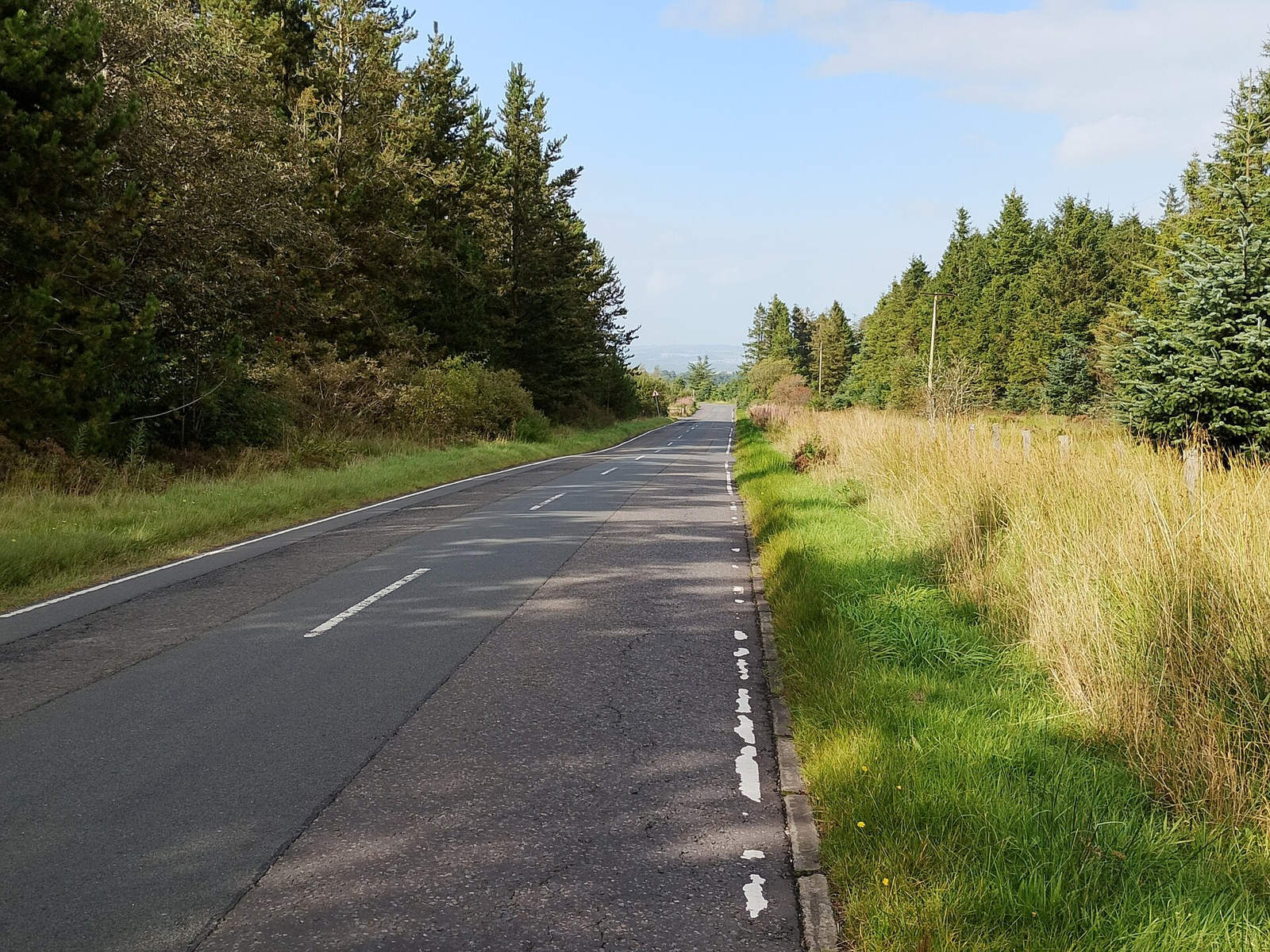
A saved town can help narrow a rural scene; compare the road and landscape before choosing a viewpoint. Photo: Jim Smillie,

Wikimedia Commons
, CC BY-SA 2.0 .
If Photos has no location, identify the kind of image
The next step depends on what you have. A photo you took, a downloaded web image, and a screenshot can look equally clear on the screen while offering different evidence.
- Your own camera photo: look for the original in your library or backup before using an edited or shared copy.
- A picture someone sent: ask whether they can provide the original and whether they remember the setting.
- An image from a website: keep the page link and look for a caption, credit, or place name.
- A screenshot: investigate the pictured scene, but do not expect the original camera coordinates to return when you save it again.
Do not add a guessed location simply to make the map appear. That changes the library record and can make a later guess look like information that came with the file. Keep your candidate place in a separate note until you have checked it.
Check the file format before choosing an online tool
An iPhone picture may be a HEIC file. WhereIsPhoto's current image analysis accepts JPG, PNG, and WEBP; HEIC is not supported. Check what you are selecting rather than assuming every item in Photos will upload in a compatible format.
If you prepare a supported copy, retain the original. Converting a file can help meet an upload format requirement, but it cannot create GPS that was never saved. Do not rename a HEIC file with a JPG extension and expect its contents to change.
The free JPEG GPS metadata tool has a narrower role. It reads existing GPS from a JPEG locally in your browser. It is useful when you have a JPEG original with location fields, and it does not infer a place from buildings, signs, or scenery.
That distinction matters when you investigate an iPhone photo. There is no single operation that reads missing coordinates, identifies a landmark, and proves an exact address. Choose the next step according to the evidence still available.
Use visible landmarks to find a lead
When there is no usable saved location, examine what the picture shows. A distinctive tower, station name, storefront, bridge, or skyline can provide a lead. Keep the whole frame available, even if you make a crop for searching.
This documented Tokyo photograph illustrates why the landmark and the camera position need separate checks. Its source identifies Tokyo Tower seen from Tokyo Tower-dori Street. The source photograph is an editorial example, not a picture taken on an iPhone for this guide or a reported AI test.

Source photograph: Ymblanter,

Tokyo Tower seen from Tokyo Tower-dori Street
, Wikimedia Commons, CC BY-SA 4.0. Used as a documented scene example, not an iPhone workflow test.
A tower name gets you to a subject. To investigate the viewpoint, compare the angle of the tower, the building at its base, and how much of the structure is visible. A pin naming the landmark would not automatically establish the camera position.
Our Google photo location guide covers image search and map comparison. Open a promising source result and read its caption before accepting its place name. Similar photographs can come from different streets around the same landmark.
Make street details work together
An ordinary street often needs several clues. Readable signs may help with language or business names, but a writing system alone does not identify a city. Road layout, building shapes, transit signs, and a traceable source can help narrow the possibilities together.
The Seoul image below has a known source identifying its setting. Without that source, the visible scene would need investigation. It is included to show the kind of context worth preserving, not to claim that every street photograph can be located.

Source photograph: IGEL,

Seoul Street
, Wikimedia Commons, CC BY-SA 3.0. A documented reference scene, not a user upload or a measured recognition result.
Search any legible text carefully and check that a result belongs to the pictured business rather than a different branch. Then compare the building and its neighbors. A business name can move, and a present-day storefront may differ from an older photograph.
Save your observations before your conclusions. “This sign appears to contain this name” leaves room for correction. Naming a street before confirming the lettering can send the rest of the search in the wrong direction.
Move a supported photo into WhereIsPhoto
For visual analysis, choose a JPG, PNG, or WEBP image on the WhereIsPhoto homepage. You need an account and available credits to run the AI workflow. It returns a location suggestion based on the image, which you should check against independent evidence.
If you are browsing on a computer while the picture is on your iPhone, use the QR phone upload option. Follow the page's instructions to select a supported file on the phone and continue the workflow on the computer. The transfer does not remove the format requirement or restore missing GPS.
Before uploading, review the image itself. Choose a picture you are comfortable submitting and avoid including unrelated private details. A useful travel scene may be enough; additional personal photographs are not automatically better evidence.
Check a suggested place on a map and compare at least two fixed features. If only the general architecture agrees, keep the conclusion at that level. A confident explanation should still be supported by what you can actually see.

Check the building, crossing, and signs together when comparing a location suggestion. Photo: Syced,

Wikimedia Commons
, CC0.
Questions about iPhone photo locations
Can I find a picture's location on iPhone for free?
Yes, if Photos already has useful location information. Start with its Info panel. A JPEG with existing GPS can also be checked in the free metadata tool. WhereIsPhoto's AI visual analysis requires an account and credits.
Why does my iPhone photo have no map?
The image may have no saved location available to Photos. Check the original, consider how the current copy was obtained, and ask the sender for context where appropriate. A missing map alone does not establish which step removed or omitted the information.
Can WhereIsPhoto analyze my HEIC original?
No, HEIC is not currently supported. Prepare a JPG, PNG, or WEBP copy for visual analysis and keep the original. For the GPS metadata checker, use a JPEG; format conversion does not guarantee that location data will be preserved.
Is a location added in Photos the same as recovered GPS?
No. Adding a location changes the information associated with the picture. It does not demonstrate that the camera recorded those coordinates when the photo was taken. Apple's guide explains how location information can be edited.
Will a screenshot reveal the original photographer's position?
Only if the visible scene provides enough evidence to investigate it. A screenshot is not a reliable substitute for the original camera file. Finding a city or a landmark may be possible while the precise viewpoint remains unknown.
Choose the next step for your picture
Read Photos first, preserve the original, and check the format before uploading. If saved information does not answer the question and you have a supported image with visible clues, open WhereIsPhoto to consider visual analysis. Review the account and credit requirements, then verify any suggested place against the scene.