

Editorial illustration: a saved screen image can preserve clues to a place, even when the original camera file is unavailable.
Start with the picture inside the screen
A screenshot of a vacation post, a video frame, or a place someone sent you can be enough to start a search. The useful evidence is usually inside the photographed scene: a readable sign, a distinctive building, the bend of a road, or a mountain behind a town. The phone's status bar rarely helps identify that scene.
If you searched “find location from screenshot,” begin with one distinction: you want the place pictured, not the place where someone captured the screen. A screenshot creates a new image of what the display showed. Do not expect it to preserve the original photograph's camera GPS record.
Keep the complete screenshot as your reference. Then make a working copy containing the actual scene, with enough surroundings to compare later. Save any visible caption or account name separately; it may lead back to the original post even if it distracts an image search.
A quick screenshot location search workflow
Work from the evidence you have, in this order:
- Look for the original. Reopen the post, ask the sender, or check your own photo library.
- Make a scene-only copy. Remove app controls and unrelated text without cutting away useful surroundings.
- Write down visible clues. Start with signs, building names, road layout, and terrain.
- Search the image and its strongest detail. Compare a full view with one purposeful crop.
- Check a candidate on a map. Match several fixed features before choosing a pin.
In a screenshot location search, this sequence gives each attempt a purpose. If a search fails, you can tell which evidence remains unused instead of submitting the same image repeatedly.
Get the original when it is within reach
Before enlarging a tiny screenshot, see whether you can recover a better copy. A saved post might still open at full size. A video may offer a clearer neighboring frame. The person who shared a screenshot may have the camera photograph in their library.
For your own JPG camera original, check its saved photo metadata. WhereIsPhoto's metadata reader accepts JPEG files and can show GPS coordinates when those records are present. It does not reconstruct coordinates that are missing from the file.
The reason to try the original first is practical: it may contain more pixels, more of the scene, or saved information that a screenshot cannot supply. Changing a screenshot's extension to JPG does not restore the original camera records. If the original is unavailable, continue with visual clues; that is a different source of evidence.
Crop away the app, keep the geography
A useful crop removes the screen's distractions while protecting the place's identifying details. Leave the tower and its neighboring roofs together. Keep a storefront's name alongside the street corner. For a landscape, preserve the relationship between the horizon, valley, shoreline, and foreground.
Use two working versions: the complete scene and one closer view of the strongest clue. Avoid making ten nearly identical crops before you have inspected the first results. Enlarging can make existing letters easier to view, but it cannot establish letters that were never legible. Keep uncertain readings in your notes rather than silently correcting them.
To find a location from a screenshot, the best crop is often wider than you expect. An isolated tower can resemble other towers; its position behind a particular boulevard may be far more distinctive.
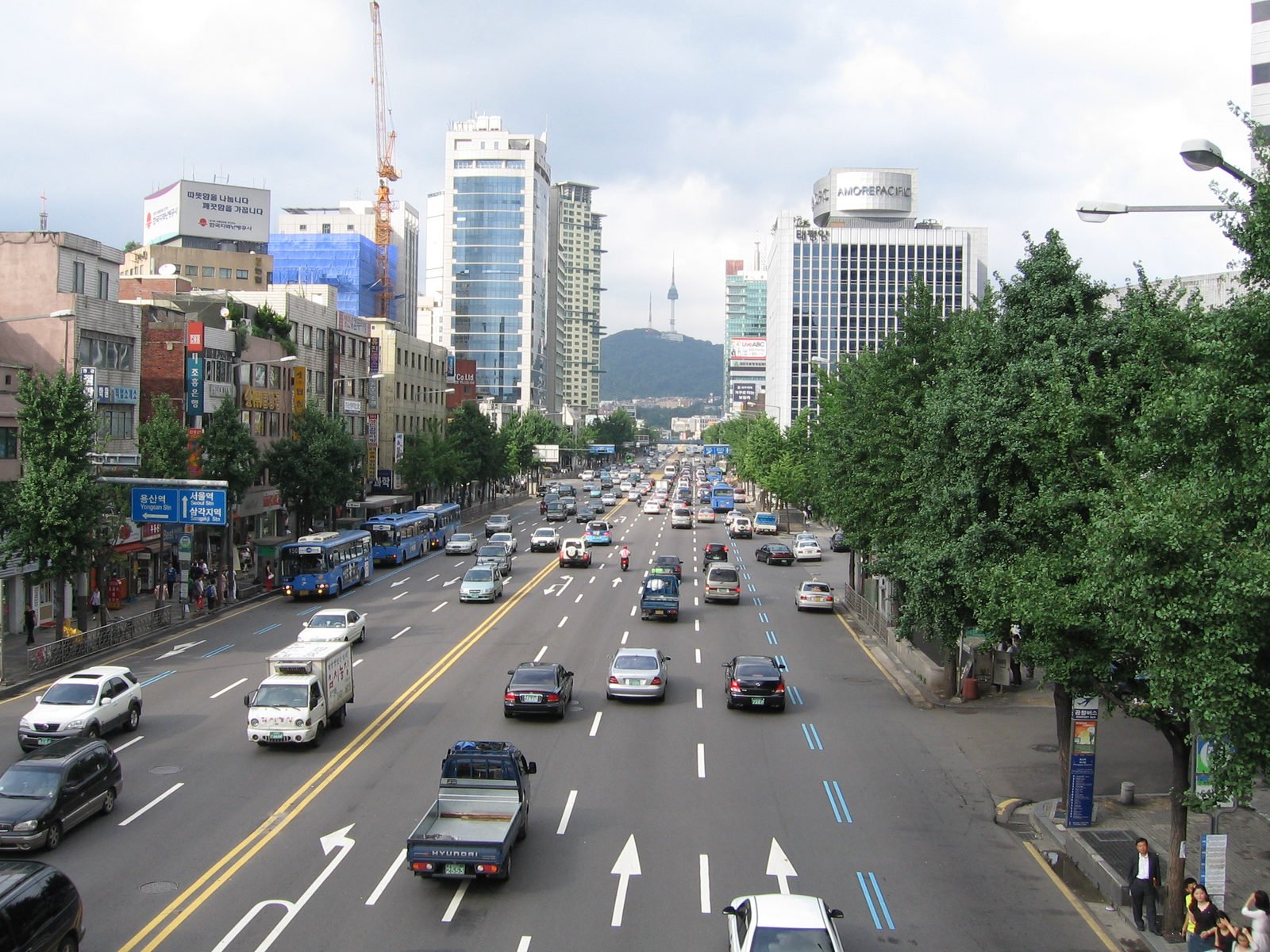
Traceable practice photo, not a screenshot search result: keep the distant tower, road signs, and boulevard together when choosing a crop. Photo by IGEL,

Wikimedia Commons
Read the scene before accepting a place name
In the Seoul example, the hilltop tower is one clue. The blue direction signs, wide road, building order, and sightline add context. Because the source already identifies this as a Seoul photograph, it is a useful practice image. It does not demonstrate that an unknown screenshot would receive the same label from a search tool.
Make a short observation list without guessing a city. Write “tower centered above a broad road” before “this must be Seoul.” Separate what you can read from what you suspect. A language can narrow your research, but a restaurant sign in that language may appear in many countries.
When you try to identify a place from a screenshot, search a distinctive phrase from a sign on its own, then combine it with another visible clue. If a sign is partly obscured, try the readable portion. Do not build every query around an early city guess; that can make unrelated results appear convincing.
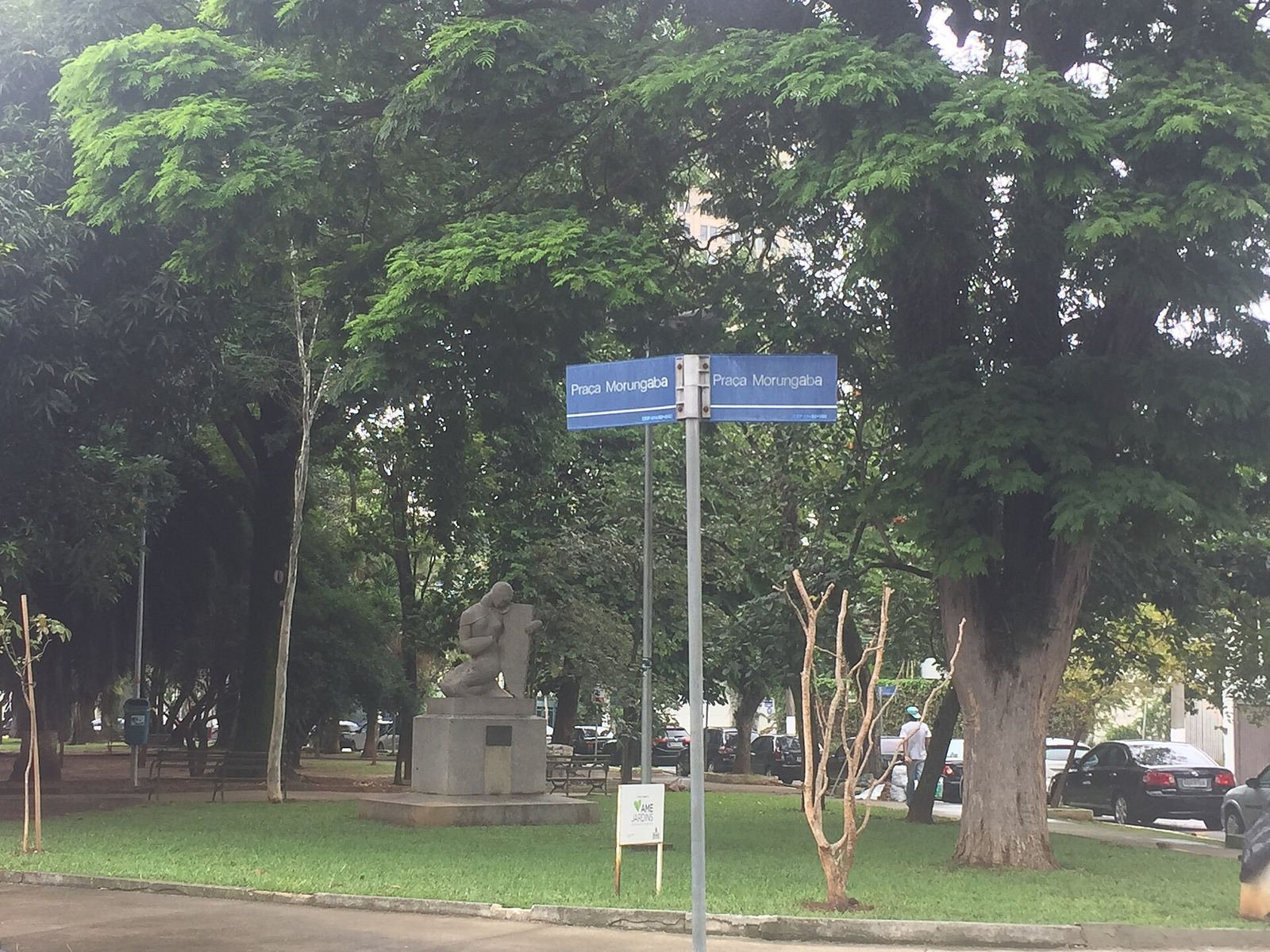
A sign crop helps with lettering, while the full frame keeps the statue and square available for comparison. Photo: Bia Muller,

Wikimedia Commons
, CC BY-SA 4.0 .
Use image search to look for the source
A screenshot from a public travel article may have a matching image elsewhere. Google documents how to upload a file and add descriptive text in its image search instructions. Its results can include similar images and websites containing the same or a related picture. A matching source is possible, not guaranteed.
Start with the scene-only image. Inspect a promising page for the same framing, caption, credit, and place name. A thumbnail with a familiar building is only a lead. If you need the detailed Google workflow, follow our guide to finding a photo's location with Google.
Image search can help you find the place in a screenshot when the image was published publicly and a useful match is returned. For a private snapshot or a brief video frame, you may have to rely on the visible scene instead.
Give each frame a fair chance
For a video screenshot, compare adjacent frames if you can access the video. One frame may hide a street sign behind a passing bus; another may show it clearly. Choose a frame with useful background detail, then retain the clip's link and timestamp so you can retrace the observation.
The Tokyo street photograph below illustrates why ordinary details deserve attention. A glass-fronted corner building alone is broad evidence. The crosswalk, sign placement, utility poles, entrance, and visible lettering create a more specific arrangement. A tighter crop of only the glass facade would discard much of that information.

Traceable practice photo: compare the corner, crosswalk, signs, and entrance as one arrangement. This is not a user result or a demonstrated camera pin. Photo by Syced,

Wikimedia Commons
,CC0.
Try a visual location suggestion when clues run thin
You can upload the scene to WhereIsPhoto for another lead. The location finder accepts JPG, PNG, and WEBP files up to 8 MB. Searching requires sign-in and one credit, and can return up to three location candidates with maps and visual clues. Choose a file from your device; this upload flow does not accept an image URL.
Use it to identify a place from a screenshot by examining the photographed scene, then compare each suggestion with the original frame. A candidate city may help you research a sign or landmark. It does not recover the screenshot's missing camera GPS or confirm the place simply by supplying coordinates.
Before uploading, remove unrelated personal information visible in the surrounding app. Preserve the original privately so you can still follow the source trail.
Verify the camera view, then save your evidence
Open a map once you have a plausible place. Check whether the road direction, building order, hill, and nearby junction can coexist from one viewpoint. Available street-level images or public photographs can help compare the arrangement. Allow for changed signs or construction, but do not explain away a road that points the wrong way.
To find a location from a screenshot responsibly, record the narrowest conclusion your evidence supports: landmark, neighborhood, city, or unresolved. Save the source link, your crop, matching features, and any contradiction. A landmark's address names the subject; the camera may have been across the street or much farther away.
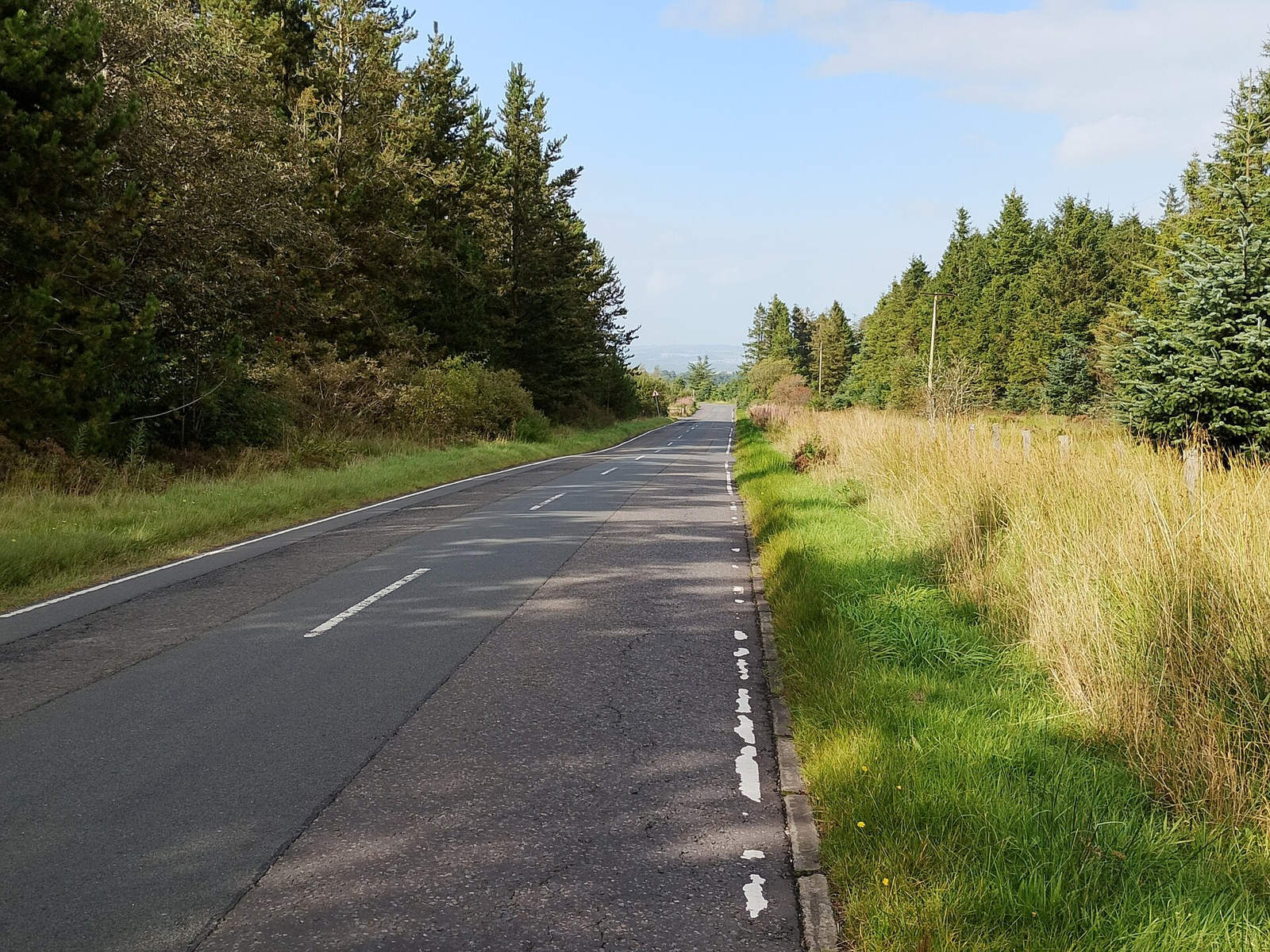
Keep the full frame when checking a rural scene: road markings and the tree line add context. Photo: Jim Smillie,

Wikimedia Commons
, CC BY-SA 2.0 .
Common questions
Can I find a location from a screenshot without GPS?
Yes, sometimes. Visible signs, landmarks, matching public images, and street layouts can provide leads without GPS. A generic room or blurry landscape may not contain enough distinguishing evidence to identify a place.
Does a screenshot contain the original photo's coordinates?
Do not assume it does. It is a new image of a display, not the camera original. Check the original file if available. The time you took the screenshot also does not establish when the pictured scene was photographed.
Can a low-resolution screenshot reveal an exact address?
Sometimes it can support an address, but only when identifying details survive and can be independently checked. A tool's precise-looking pin is not enough. Keep the answer at city or neighborhood level when that is all the scene supports.
What should I try if nothing matches?
Get a better copy or a new clue. Revisit the source post, another video frame, or a readable sign. If you still want a visual lead, start a photo location search, keep the full frame available, and test any suggestion against the same evidence.